Using the Enjin Platform with MCP
The Enjin Platform ships a built-in MCP (Model Context Protocol) server. Connect it to your AI client of choice — Claude, ChatGPT, Cursor, Grok, VS Code, or any other MCP-aware agent — and the agent can work with your Enjin Platform account the same way you do through the API: inspect your collections, tokens, wallets, and transactions, and, with Write access, submit transactions to mint, transfer, and otherwise manage your project's assets.
The MCP server is an experimental feature. Tool names, capabilities, and limits may change without notice.
Quick facts
- Server URL:
https://platform.enjin.io/mcp - Transport: Streamable HTTP (remote server — nothing to install locally)
- Authentication: OAuth 2.1 with PKCE. Your MCP client opens a browser login; no client ID, secret, or API token is needed
- Scope:
mcp:use - Requirements: An Enjin Platform account
Opening https://platform.enjin.io/mcp in a browser returns 405 Method Not Allowed. Add it to an MCP client instead — see the steps below.
What your agent can do
The MCP server exposes the full Platform API, so an agent can help with anything you would otherwise do through the Platform UI or GraphQL. For example:
- Explore and monitor your project — look up collections, tokens, balances, transactions, fuel tanks, and marketplace listings, and answer questions about your project's on-chain state in plain language.
- Maintain your project (Write access only) — mint and transfer tokens, update metadata, run batch operations, create managed wallets, and other actions that go through
CreateTransaction. Transactions are still signed by your Wallet Daemon, exactly as they are for any other Platform request.
See the reference at the bottom of this page for the full list of tools, resources, and prompts.
Step 1: Add the server to your MCP client
Add https://platform.enjin.io/mcp as a remote HTTP MCP server. Pick your client below — if yours is not listed, the Other clients tab covers the general case.
- Claude Code
- Claude Desktop / claude.ai
- ChatGPT
- Cursor
- VS Code
- Codex CLI
- Other clients
Run this in your terminal:
claude mcp add --transport http enjin-platform https://platform.enjin.io/mcp
Then, inside Claude Code, run /mcp, select enjin-platform, and choose Authenticate.
- Open Settings → Connectors.
- Click Add custom connector.
- Enter a name (e.g.
Enjin Platform) and the URLhttps://platform.enjin.io/mcp. - Click Add, then Connect.
Custom MCP servers require Developer mode, available on paid ChatGPT plans (web app):
- Open Settings → Security and login and turn on Developer mode.
- Open Settings → Connectors (also called Apps in some versions), click Create, and enter a name and the URL
https://platform.enjin.io/mcp. Leave authentication set to OAuth. - Click Create, then complete the login in the browser window that opens.
- In a chat, enable the connector from the + (tools) menu so the agent can use it.
Add the server to your mcp.json (project-level .cursor/mcp.json or the global one):
{
  "mcpServers": {
    "enjin-platform": {
      "url": "https://platform.enjin.io/mcp"
    }
  }
}
Then open Settings → MCP and click Connect next to enjin-platform.
Add the server to .vscode/mcp.json (project) or your user mcp.json:
{
  "servers": {
    "enjin-platform": {
      "type": "http",
      "url": "https://platform.enjin.io/mcp"
    }
  }
}
Click Start on the server entry (or the CodeLens above it) and complete the login when prompted.
Run this in your terminal:
codex mcp add enjin-platform --url https://platform.enjin.io/mcp
codex mcp login enjin-platform
The second command opens your browser to complete the login.
Any client that supports remote MCP servers over Streamable HTTP with OAuth can connect — for example Grok (grok.com → Connectors), Gemini CLI, or Windsurf. You only need the URL:
https://platform.enjin.io/mcp
Most clients accept it in a config block shaped like this:
{
  "mcpServers": {
    "enjin-platform": {
      "type": "http",
      "url": "https://platform.enjin.io/mcp"
    }
  }
}
Leave any token, header, or client-ID fields empty — the client discovers the OAuth settings from the server and handles the login itself.
Step 2: Authorize the connection
When your client connects for the first time, it opens your browser on the Platform's Authorize MCP Client page. Log in if prompted. The page shows the client name, its redirect URI, and the requested scope.
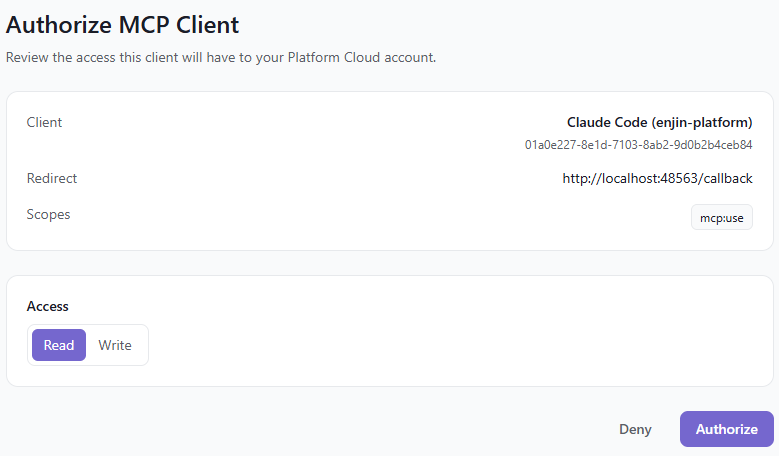
Choose the access level for this client:
- Read (default) — the agent can run queries only. Mutations are rejected.
- Write — the agent can also submit mutations such as creating transactions. With Write access you can tick Restrict transaction signing to specific public keys and list the SS58 addresses or public keys that are allowed to sign. Only those wallets can be used as a transaction signer.
Give an agent Read access first and widen it only when you actually need it to submit transactions. If you enable Write, restrict signing to the specific wallets the agent should use.
If the signing restriction is ticked but no keys are listed, transaction mutations cannot run at all.
Click Authorize. Your client completes the handshake automatically and the server's tools become available. Tokens are long-lived, so you will rarely need to re-authorize.
Step 3: Try it
Ask your agent something the Platform can answer. For example:
What is the ENJ balance of
efRC9jw5LeZFqmaWBBDxZRTyaLP9dLAqixy32tSnqW9wCsb6yon Enjin Matrixchain?
The agent will run a query like this through the Platform:
query GetAccount($network: Network!, $chain: Chain!, $address: String!) {
  GetAccount(network: $network, chain: $chain, address: $address) {
    address
    balance
  }
}
Variables:
{
  "network": "ENJIN",
  "chain": "MATRIX",
  "address": "efRC9jw5LeZFqmaWBBDxZRTyaLP9dLAqixy32tSnqW9wCsb6y"
}
The balance field is returned already formatted in ENJ.
The agent cannot introspect the Platform's GraphQL schema over MCP. If it needs field names it does not know, point it at the API Reference — the pages there are written to be read by agents as well as humans.
Managing connections
Every authorized client appears under Settings → MCP Connections on the Platform, with its access level, signing restrictions, and when it was created and last used.
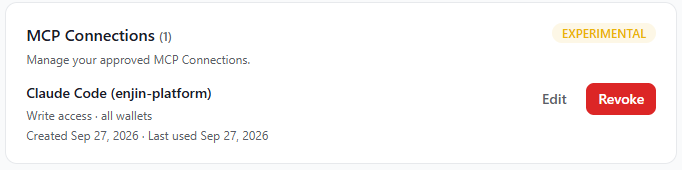
- Edit — switch a connection between Read and Write, or change its signing restrictions.
- Revoke — disconnect the client. It will have to authorize again to reconnect.
Reference
Tools
| Tool | Access | Description |
|---|---|---|
platform-resolve-address-context | Read | Takes an SS58 address or 0x public key and returns the public key plus its inferred network, chain, native token symbol, and decimals. |
platform-graphql-query | Read | Runs a GraphQL query against the Platform API. Introspection queries are blocked. |
platform-graphql-mutation | Write | Runs an allowed GraphQL mutation. On a Read connection it returns This MCP connection does not permit mutations. |
Resources
| Resource | Description |
|---|---|
platform://docs/addressing | The SS58 prefix map (en Enjin Relaychain, ef Enjin Matrixchain, cn Canary Relaychain, cx Canary Matrixchain) and guidance to always pass network and chain explicitly. |
platform://context/address/{address} | Per-address context — the same data as the resolve tool. |
Prompts
| Prompt | Description |
|---|---|
query-native-balance | Builds the correct GetAccount balance query for a given address. |
Notes
- Platform API tokens are not accepted by the MCP server. Authentication is only through the OAuth flow above.
- There is no self-hosted variant. The MCP server is part of the Enjin Platform Cloud.
- The GraphQL surface is the same as the normal Platform API, so everything in the API Reference applies.