Enjin Quick Start Guide
Welcome! This guide provides the essential steps to quickly integrate the Enjin Blockchain
and NFTs into your game or application using the Enjin Platform. We'll use the Canary testnet for a safe and free development environment.- Set up your developer account on the Enjin Platform Cloud.
- Set up the Wallet Daemon to sign your transactions automatically.
- Funded your daemon's wallet with cENJ from the built-in Canary faucet.
- Created your first blockchain Collection and NFT.
- Sent a token to a wallet address.
- Read the tokens held by a wallet address.
1. Create Your Enjin Platform Account
What is the Enjin Platform?
The Enjin Platform is your central hub for managing blockchain projects, collections, and digital items (NFTs and Fungible Tokens). We'll start by creating an account on the Enjin Platform. We'll use the Canary testnet throughout this guide so you can experiment without using real funds or affecting the main network.
Steps to Create an Account:
- Navigate to the Enjin Platform: https://platform.enjin.io/
- Click on the "Create an account" button.
- Fill in your account credentials and click on the "Register" button.
- Verify your email address by clicking the link sent to your inbox.
- Log in to your newly created Enjin Platform account.
2. Set Up the Wallet Daemon for Signing Transactions
Why a Wallet Daemon?
Every on-chain action you initiate through the Platform — creating a collection, minting a token, transferring — needs to be signed by an account that holds funds. The Enjin Wallet Daemon is a small service that runs alongside the Platform and signs your transactions automatically as you submit them, so you don't have to approve each one manually.
Steps to Set Up:
- On the Account Settings page, click Create API Token and copy the new token somewhere safe.
- Follow the Wallet Daemon Setup guide to download, configure, and run the daemon. It will use the API token from step 1 to know which Platform account to sign for.
Once the daemon is running and connected, every transaction you submit from this Platform account is signed automatically.
To create or transact on Canary, your daemon's wallet needs some cENJ to cover fees and deposits. See Get Test Funds (Canary Faucet) — one click in the dashboard drops 250 cENJ into your daemon's wallet.
3. Create Your First Collection and Token
What are Collections and Tokens?
Let's define the core building blocks for your digital items on the Enjin Blockchain
:- Collection: Think of a Collection as a container or category for your digital items. It helps organize items related to your specific game, application, or a particular series. All items within a collection share certain base properties defined when you create the collection.
- Token (
multiToken): A Token represents the actual digital item that users can own within a Collection. On the Enjin Blockchain, all tokens fundamentally exist as MultiTokens. This is a core feature built directly into the blockchain protocol itself.
A common approach is to create:
- One Collection for your entire game or application.
- Multiple Tokens within that collection, representing the various items, characters, achievements, or currencies your users can own.
Steps for creating a collection and token:
You can interact with the Enjin Platform and initiate blockchain requests in several ways:
- Manually: Using the user interface of the Enjin Platform Cloud.
- Programmatically:
- Sending direct HTTP requests to the Enjin GraphQL API.
- Using the official Enjin SDKs:
- Other Languages: The Guides section provides code snippets for GraphQL, cURL, JavaScript, Node.JS, and Python for most operations.
- AI Assistant: Utilize the Enjin Platform AI assistant to help construct API calls.
- Create Collection:
- In the Platform menu, navigate to Collections and click the "Create Collection" button.
- Customize your collection — you can specify its Mint Policy, Royalties, Explicit Royalty Currencies, and Attributes. To learn more about collection configuration, see the Create Collections guide.
- Click Create to submit. The Wallet Daemon signs and broadcasts the transaction automatically — watch it move from
PENDING→BROADCAST→FINALIZEDon the Transactions page. - Once finalized, the new collection appears on the Collections page with its assigned
id. Keep that id handy for the next step.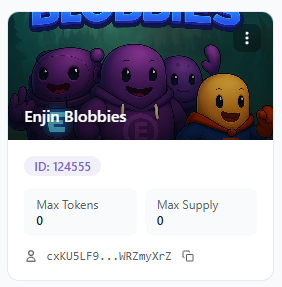
- Create Token:
- Open the Collections page, click the collection you just created, then click the "Create Token" button at the top of the collection's page.
- Customize your token — Token ID, initial supply, cap, royalty behavior, and attributes. To learn more about token configuration, see the Create Tokens guide.
- In the Recipient input field, paste the Address of the wallet that should receive the token's initial supply. To send the supply to your own daemon's wallet, copy its address from the Settings page.
- Click Create to submit. The Wallet Daemon signs and broadcasts the transaction automatically; track it on the Transactions page.
You can also create collections and tokens using the API or SDKs.
➡️ See Guides:
4. Link a User's Wallet to Your Application
Why Link User Wallets?
To interact with a specific user's blockchain items (check their holdings, send them items), you need to know their public wallet address and have proof they control it. This process involves verifying the user's ownership of their wallet and then associating that verified wallet address with their account within your application's database. This association is what allows you to connect their in-app identity with their blockchain identity.
The typical flow for this is:
- Your application requests a unique wallet verification challenge from the Enjin API.
- Your application surfaces the challenge to the user (for example, via a QR code or a deep link).
- The user approves the request in their wallet, securely providing your application with their public wallet address.
- Your application then saves this verified wallet address and associates it with the user's internal ID in your database.
Once this association (or "link") is established, you can:
- Grant in-game perks based on NFT ownership.
- Airdrop or transfer items directly to the user's associated wallet.
- Display their relevant blockchain inventory within your app.
Implementation
A native wallet linking flow is currently in development. Once it ships, this section will document the end-to-end implementation. In the meantime, you can have users share their wallet address directly (for example, by pasting it into a form) and use that address in the steps below.
5. Send a Token to a User
Why Send Tokens?
This is a core interaction — transferring an NFT from your project's wallet (or another source) to a user's wallet. Common scenarios include:
- Rewarding achievements.
- In-app purchases.
- Airdrops or giveaways.
Implementation (GraphQL Example):
Sending a token uses the same CreateTransaction mutation as the rest of the Platform, with the transferToken field set on the transaction input. You'll need the recipient's address, the collection id, the token id, and the amount.
Run the following from the Enjin Platform GraphiQL Playground — or from your own GraphQL client (in which case add Authorization: Bearer <YOUR_API_TOKEN> to your request headers):
mutation TransferToken {
  CreateTransaction(
    network: CANARY
    chain: MATRIX
    transaction: {
      transferToken: {
        recipient: "cxLU94nRz1en6gHnXnYPyTdtcZZ9dqBasexvexjArj4V1Qr8f"  # any wallet address you control for testing
        collectionId: 36105
        tokenId: 0
        amount: 1
      }
    }
  ) {
    uuid
    action
    state
  }
}
The Wallet Daemon signs and broadcasts automatically. The response includes the transaction's uuid — use it to poll status with GetTransaction(network: CANARY, chain: MATRIX, uuid: "<returned-uuid>") or watch the row on the Transactions page.
Once finalized, the transfer event is emitted with the recipient and amount — see Working with Events for how to read it.
Check the full in-depth guide: Sending Tokens.
6. Reading a User's Tokens
Why Read User Tokens?
Once you know a user's wallet address, you'll often need to check which tokens they hold. This lets you:
- Display their relevant inventory in your game or app interface.
- Verify ownership of specific NFTs to grant access, perks, or abilities.
- Trigger game logic based on the items they hold.
Implementation (GraphQL Example):
Use the GetAccount query to read an address's holdings. Run this from the GraphiQL Playground or your own GraphQL client:
query FetchingWalletTokens {
  GetAccount(
    network: CANARY
    chain: MATRIX
    address: "cxLU94nRz1en6gHnXnYPyTdtcZZ9dqBasexvexjArj4V1Qr8f"
  ) {
    address
    balance
    tokens {
      tokenId
      collection {
        id
      }
      attributes {
        key
        value
      }
    }
  }
}
balance is the address's total ENJ balance in base units — divide by 10^18 for ENJ. tokens lists every token the wallet currently holds across all collections.
GetAccount currently tells you which tokens a wallet holds (and each token's metadata), but not how many units of each. Per-holder balance support is in development — this query will include amount information once it ships.
Check the full in-depth guide: Reading User Wallet Balances.
7. Next Steps and Advanced Features
Congratulations! You've covered the basics of setting up your project on the Enjin Platform, creating items, and reading and transferring tokens.
Remember, this guide used the Canary testnet for development and testing. When you are ready to launch your application live, you will need to:
- Switch the network selector to Enjin (mainnet) in the Enjin Platform Cloud.
- Update your application's API calls or SDKs to target mainnet by passing
network: ENJINon each query and mutation.
Now you can explore more advanced integrations:
- On-Demand Minting: Programmatically create new tokens directly into users' wallets based on real-time application events (e.g., crafting an item, completing a quest). This avoids pre-minting large supplies. ➡️ Learn about On-Demand Minting
- Managed Wallets: Simplify onboarding for users unfamiliar with crypto wallets. You can create and manage wallets for your users within the platform. Users can interact with blockchain features seamlessly, and later choose to export their items to their own self-custody Enjin Wallet if they wish. This significantly lowers the barrier to entry for Web2 users. ➡️ Explore Managed Wallets