Freezing & Thawing
"Freezing" refers to the process of temporarily suspending the transferability of a collection or a specific token. This action provides you greater control over the movement of assets, enhancing security and enabling unique use-cases.
One such use-case is the implementation of "Soulbound" tokens. A Soulbound token is bound to a specific address and cannot be transferred out of the wallet it's minted on. This feature can be used to create unique gameplay mechanics, loyalty rewards, and more.
Freezing only applies to transfers, which also results in marketplace listings being unpurchasable. Freezing does not suspend token minting.
Freeze States
A freeze state determines whether a token can be transferred and the conditions under which it remains locked or becomes transferrable. This feature enables token creators to define unique behaviors and restrictions for their assets, supporting scenarios like enhanced security, gameplay mechanics, or compliance needs.
Explanation of Freeze States
-
Permanent: The token is permanently frozen and cannot be transferred to another account under any circumstances. Use this state for tokens that are intended to stay bound to their original holder, such as "Soulbound" tokens for identity or loyalty purposes.
-
Temporary: The token is temporarily frozen, restricting transfers until it is explicitly thawed by the collection owner. This state is ideal for implementing time-limited restrictions or conditional asset movement.
-
Never: The token is always transferrable and cannot be frozen. Choose this state if you want the token to remain unrestricted in its movement across wallets and platforms.
- Some Enjin Coin on Enjin Matrixchain to pay for Transaction Fees. You can obtain cENJ (Canary ENJ) for testing from the built-in Canary faucet in the Platform UI.
- An Enjin Platform Account.
- A Collection and a Token to freeze.
There are two ways to Freeze / Thaw:
Option A. Using the Enjin Dashboard
This tutorial illustrates the process of freezing a collection. The same flow applies to freezing or thawing a single token — Locate the token in the dashboard and pick Freeze Token or Thaw Token from its actions menu instead.
Freezing an entire collection
In the Platform menu, navigate to "Collections". Locate the collection you wish to freeze, click the 3 vertical dots (⋮) on its row, then click the "Freeze Collection" button. In the form that opens up, click on the "Freeze Collection" button.
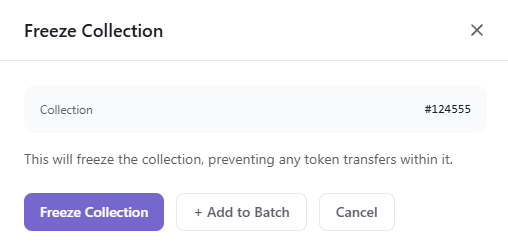
The Transaction Request will then appear in the "Transactions" menu. A Transaction Submitted modal appears with the new transaction's UUID and a View Transaction button that opens its row on the Transactions page.
Since this request requires a Transaction
, it must be signed before it broadcasts.- By default, transactions are signed automatically by the Wallet Daemon.
- To sign with a different account, expand Transaction Options → Signing Account on the form and provide a Managed Wallet address.
Option B. Using the Enjin API & SDKs
Freeze and thaw are split into four discriminator actions on CreateTransaction:
freezeCollection: { collectionId }freezeToken: { collectionId, tokenId, state }— wherestateisPERMANENT,TEMPORARY, orNEVER.thawCollection: { collectionId }thawToken: { collectionId, tokenId, state }
The C++ examples on this page target an older version of the Enjin Platform and won't work against the current API. An updated C++ SDK is on the way — for now, use the C# SDK or the GraphQL examples.
Freezing an entire collection
Use the freezeCollection action — freezing a collection freezes every token in it.
- GraphQL
- cURL
- c# SDK
- C++ SDK
- Javascript
- Node.js
- Python
mutation FreezeCollection {
  CreateTransaction(
    network: ENJIN  # or CANARY for testnet
    chain: MATRIX
    transaction: {
      freezeCollection: { collectionId: 36105 }
    }
  ) {
    uuid
    action
    state
  }
}
curl --location 'https://platform.enjin.io/graphql' \
-H 'Content-Type: application/json' \
-H 'Authorization: Bearer YOUR_API_TOKEN' \
-d '{"query":"mutation FreezeCollection($collectionId: BigInt!) {\r\n  CreateTransaction(\r\n    network: ENJIN\r\n    chain: MATRIX\r\n    transaction: { freezeCollection: { collectionId: $collectionId } }\r\n  ) {\r\n    uuid\r\n    action\r\n    state\r\n  }\r\n}","variables":{"collectionId":36105}}'
using System;
using Enjin.Platform.Sdk;

// Create and authenticate the client
using var client = new PlatformClient();
client.Auth("<your-platform-token>");

// Build the CreateTransaction mutation (freezeCollection action on TransactionInput)
var mutation = new MutationQueryBuilder()
    .WithCreateTransaction(
        new TransactionQueryBuilder().WithUuid().WithState(),
        network: Network.Enjin, // or Network.Canary for testnet
        chain: Chain.Matrix,
        transaction: new TransactionInput
        {
            FreezeCollection = new FreezeCollectionInput
            {
                CollectionId = 36105,
            },
        });

var response = await client.SendMutation(mutation);
Console.WriteLine(response.Result.Data?.CreateTransaction?.Uuid);
#include "EnjinPlatformSdk/CoreMutations.hpp"
#include <iostream>

using namespace enjin::platform::sdk;
using namespace std;

int main() {

    // Set up the mutation
    Freeze freezeCollection = Freeze()
            .SetCollectionId(make_shared<SerializableString>("36105"))
            .SetFreezeType(FreezeType::Collection);

    // Define Fragment for the returned data
    TransactionFragment transactionFragment = TransactionFragment()
            .WithId()
            .WithMethod()
            .WithState();

    freezeCollection.SetFragment(make_shared<TransactionFragment>(transactionFragment));

    // Create and auth a client to send the request to the platform
    unique_ptr<PlatformClient> client = PlatformClient::Builder()
            .SetBaseAddress("https://platform.enjin.io")
            .Build();
    client->Auth("Your_Platform_Token_Here");

    // Send the request then get the response and write the output to the console.
    // Only the fields that were requested in the fragment will be filled in,
    // other fields which weren't requested in the fragment will be set to null.
    future<PlatformResponsePtr<GraphQlResponse<Transaction>>> futureResponse = SendFreeze(*client, freezeCollection);

    // Get the platform response holding the HTTP data
    PlatformResponsePtr<GraphQlResponse<Transaction>> response = futureResponse.get();

    // Get the result, a GraphQL response, holding the GraphQL data
    const optional<GraphQlResponse<Transaction>>& gqlResult = response->GetResult();

    // Write the result data to the console
    if (gqlResult.has_value() && gqlResult->IsSuccess())
    {
        const optional<Transaction>& freezeCollectionResult = gqlResult->GetData()->GetResult();

        std::cout << freezeCollectionResult->GetId().value() << std::endl;
    }

    // Write any error messages to the console
    if (gqlResult.has_value() && gqlResult->HasErrors())
    {
        const optional<vector<GraphQlError>>& errors = gqlResult->GetErrors();

        for (const GraphQlError& error : errors.value()) {
            std::cout << error.GetMessage().value() << std::endl;
        }
    }

    client.reset();

    return 0;
}
fetch('https://platform.enjin.io/graphql', {
  method: 'POST',
  headers: {'Content-Type': 'application/json','Authorization': 'Bearer YOUR_API_TOKEN'},
  body: JSON.stringify({
    query: `
      mutation FreezeCollection($collectionId: BigInt!) {
        CreateTransaction(
          network: ENJIN
          chain: MATRIX
          transaction: { freezeCollection: { collectionId: $collectionId } }
        ) {
          uuid
          action
          state
        }
      }
    `,
    variables: { collectionId: 36105 }
  }),
})
.then(response => response.json())
.then(data => console.log(data));
const axios = require('axios');

axios.post('https://platform.enjin.io/graphql', {
  query: `
    mutation FreezeCollection($collectionId: BigInt!) {
      CreateTransaction(
        network: ENJIN
        chain: MATRIX
        transaction: { freezeCollection: { collectionId: $collectionId } }
      ) {
        uuid
        action
        state
      }
    }
  `,
  variables: { collectionId: 36105 }
}, {
  headers: {'Content-Type': 'application/json','Authorization': 'Bearer YOUR_API_TOKEN'}
})
.then(response => console.log(response.data))
.catch(error => console.error(error));
import requests

query = '''
mutation FreezeCollection($collectionId: BigInt!) {
  CreateTransaction(
    network: ENJIN
    chain: MATRIX
    transaction: { freezeCollection: { collectionId: $collectionId } }
  ) {
    uuid
    action
    state
  }
}
'''

variables = {'collectionId': 36105}

response = requests.post('https://platform.enjin.io/graphql',
  json={'query': query, 'variables': variables},
  headers={'Content-Type': 'application/json', 'Authorization': 'Bearer YOUR_API_TOKEN'}
)
print(response.json())
Once the transaction is executed, all tokens within the specified collection will be frozen.
Freezing a single token
Use the freezeToken action. The state field selects the freeze state to apply (TEMPORARY for a freeze that can be thawed later, PERMANENT for a soulbound-style freeze).
- GraphQL
- cURL
- c# SDK
- C++ SDK
- Javascript
- Node.js
- Python
mutation FreezeToken {
  CreateTransaction(
    network: ENJIN  # or CANARY for testnet
    chain: MATRIX
    transaction: {
      freezeToken: {
        collectionId: 36105
        tokenId: 0
        state: TEMPORARY  # or PERMANENT for a soulbound freeze
      }
    }
  ) {
    uuid
    action
    state
  }
}
curl --location 'https://platform.enjin.io/graphql' \
-H 'Content-Type: application/json' \
-H 'Authorization: Bearer YOUR_API_TOKEN' \
-d '{"query":"mutation FreezeToken($collectionId: BigInt!, $tokenId: BigInt!, $state: FreezeState!) {\r\n  CreateTransaction(\r\n    network: ENJIN\r\n    chain: MATRIX\r\n    transaction: { freezeToken: { collectionId: $collectionId, tokenId: $tokenId, state: $state } }\r\n  ) {\r\n    uuid\r\n    action\r\n    state\r\n  }\r\n}","variables":{"collectionId":36105,"tokenId":0,"state":"TEMPORARY"}}'
using System;
using Enjin.Platform.Sdk;

// Create and authenticate the client
using var client = new PlatformClient();
client.Auth("<your-platform-token>");

// Build the CreateTransaction mutation (freezeToken action on TransactionInput)
var mutation = new MutationQueryBuilder()
    .WithCreateTransaction(
        new TransactionQueryBuilder().WithUuid().WithState(),
        network: Network.Enjin, // or Network.Canary for testnet
        chain: Chain.Matrix,
        transaction: new TransactionInput
        {
            FreezeToken = new FreezeTokenInput
            {
                CollectionId = 36105,
                TokenId = 0,
                State = FreezeState.Temporary, // or FreezeState.Permanent for a soulbound freeze
            },
        });

var response = await client.SendMutation(mutation);
Console.WriteLine(response.Result.Data?.CreateTransaction?.Uuid);
#include "EnjinPlatformSdk/CoreMutations.hpp"
#include <iostream>

using namespace enjin::platform::sdk;
using namespace std;

int main() {

    // Setup an Encodable Token ID
    EncodableTokenIdInput tokenId = EncodableTokenIdInput()
            .SetInteger(make_shared<SerializableString>("0"));

    // Set up the mutation
    Freeze freezeToken = Freeze()
            .SetCollectionId(make_shared<SerializableString>("36105"))
            .SetTokenId(make_shared<EncodableTokenIdInput>(tokenId))
            .SetFreezeType(FreezeType::Token)
            .SetFreezeState(FreezeState::Temporary);

    // Define Fragment for the returned data
    TransactionFragment transactionFragment = TransactionFragment()
            .WithId()
            .WithMethod()
            .WithState();

    freezeToken.SetFragment(make_shared<TransactionFragment>(transactionFragment));

    // Create and auth a client to send the request to the platform
    unique_ptr<PlatformClient> client = PlatformClient::Builder()
            .SetBaseAddress("https://platform.enjin.io")
            .Build();
    client->Auth("Your_Platform_Token_Here");

    // Send the request then get the response and write the output to the console.
    // Only the fields that were requested in the fragment will be filled in,
    // other fields which weren't requested in the fragment will be set to null.
    future<PlatformResponsePtr<GraphQlResponse<Transaction>>> futureResponse = SendFreeze(*client, freezeToken);

    // Get the platform response holding the HTTP data
    PlatformResponsePtr<GraphQlResponse<Transaction>> response = futureResponse.get();

    // Get the result, a GraphQL response, holding the GraphQL data
    const optional<GraphQlResponse<Transaction>>& gqlResult = response->GetResult();

    // Write the result data to the console
    if (gqlResult.has_value() && gqlResult->IsSuccess())
    {
        const optional<Transaction>& freezeTokenResult = gqlResult->GetData()->GetResult();

        std::cout << freezeTokenResult->GetId().value() << std::endl;
    }

    // Write any error messages to the console
    if (gqlResult.has_value() && gqlResult->HasErrors())
    {
        const optional<vector<GraphQlError>>& errors = gqlResult->GetErrors();

        for (const GraphQlError& error : errors.value()) {
            std::cout << error.GetMessage().value() << std::endl;
        }
    }

    client.reset();

    return 0;
}
fetch('https://platform.enjin.io/graphql', {
  method: 'POST',
  headers: {'Content-Type': 'application/json','Authorization': 'Bearer YOUR_API_TOKEN'},
  body: JSON.stringify({
    query: `
      mutation FreezeToken($collectionId: BigInt!, $tokenId: BigInt!, $state: FreezeState!) {
        CreateTransaction(
          network: ENJIN
          chain: MATRIX
          transaction: { freezeToken: { collectionId: $collectionId, tokenId: $tokenId, state: $state } }
        ) {
          uuid
          action
          state
        }
      }
    `,
    variables: { collectionId: 36105, tokenId: 0, state: "TEMPORARY" }
  }),
})
.then(response => response.json())
.then(data => console.log(data));
const axios = require('axios');

axios.post('https://platform.enjin.io/graphql', {
  query: `
    mutation FreezeToken($collectionId: BigInt!, $tokenId: BigInt!, $state: FreezeState!) {
      CreateTransaction(
        network: ENJIN
        chain: MATRIX
        transaction: { freezeToken: { collectionId: $collectionId, tokenId: $tokenId, state: $state } }
      ) {
        uuid
        action
        state
      }
    }
  `,
  variables: { collectionId: 36105, tokenId: 0, state: "TEMPORARY" }
}, {
  headers: {'Content-Type': 'application/json','Authorization': 'Bearer YOUR_API_TOKEN'}
})
.then(response => console.log(response.data))
.catch(error => console.error(error));
import requests

query = '''
mutation FreezeToken($collectionId: BigInt!, $tokenId: BigInt!, $state: FreezeState!) {
  CreateTransaction(
    network: ENJIN
    chain: MATRIX
    transaction: { freezeToken: { collectionId: $collectionId, tokenId: $tokenId, state: $state } }
  ) {
    uuid
    action
    state
  }
}
'''

variables = {'collectionId': 36105, 'tokenId': 0, 'state': 'TEMPORARY'}

response = requests.post('https://platform.enjin.io/graphql',
  json={'query': query, 'variables': variables},
  headers={'Content-Type': 'application/json', 'Authorization': 'Bearer YOUR_API_TOKEN'}
)
print(response.json())
Once the transaction is executed, the specified token will be frozen.
Thawing a Collection or Token
Thawing a collection means allowing all tokens within that collection to be active again, so they can be transferred or burned as desired, removing the restrictions that kept them locked in a particular wallet.
Thawing an entire collection
By thawing a collection, all tokens within that collection will be thawed, meaning they can be burned and transferred out of the wallet they're currently in.
Use the thawCollection action.
- GraphQL
- cURL
- c# SDK
- C++ SDK
- Javascript
- Node.js
- Python
mutation ThawCollection {
  CreateTransaction(
    network: ENJIN  # or CANARY for testnet
    chain: MATRIX
    transaction: {
      thawCollection: { collectionId: 36105 }
    }
  ) {
    uuid
    action
    state
  }
}
curl --location 'https://platform.enjin.io/graphql' \
-H 'Content-Type: application/json' \
-H 'Authorization: Bearer YOUR_API_TOKEN' \
-d '{"query":"mutation ThawCollection($collectionId: BigInt!) {\r\n  CreateTransaction(\r\n    network: ENJIN\r\n    chain: MATRIX\r\n    transaction: { thawCollection: { collectionId: $collectionId } }\r\n  ) {\r\n    uuid\r\n    action\r\n    state\r\n  }\r\n}","variables":{"collectionId":36105}}'
using System;
using Enjin.Platform.Sdk;

// Create and authenticate the client
using var client = new PlatformClient();
client.Auth("<your-platform-token>");

// Build the CreateTransaction mutation (thawCollection action on TransactionInput)
var mutation = new MutationQueryBuilder()
    .WithCreateTransaction(
        new TransactionQueryBuilder().WithUuid().WithState(),
        network: Network.Enjin, // or Network.Canary for testnet
        chain: Chain.Matrix,
        transaction: new TransactionInput
        {
            ThawCollection = new ThawCollectionInput
            {
                CollectionId = 36105,
            },
        });

var response = await client.SendMutation(mutation);
Console.WriteLine(response.Result.Data?.CreateTransaction?.Uuid);
#include "EnjinPlatformSdk/CoreMutations.hpp"
#include <iostream>

using namespace enjin::platform::sdk;
using namespace std;

int main() {

    // Set up the mutation
    Thaw thawCollection = Thaw()
            .SetCollectionId(make_shared<SerializableString>("36105"))
            .SetFreezeType(FreezeType::Collection);

    // Define Fragment for the returned data
    TransactionFragment transactionFragment = TransactionFragment()
            .WithId()
            .WithMethod()
            .WithState();

    thawCollection.SetFragment(make_shared<TransactionFragment>(transactionFragment));

    // Create and auth a client to send the request to the platform
    unique_ptr<PlatformClient> client = PlatformClient::Builder()
            .SetBaseAddress("https://platform.enjin.io")
            .Build();
    client->Auth("Your_Platform_Token_Here");

    // Send the request then get the response and write the output to the console.
    // Only the fields that were requested in the fragment will be filled in,
    // other fields which weren't requested in the fragment will be set to null.
    future<PlatformResponsePtr<GraphQlResponse<Transaction>>> futureResponse = SendThaw(*client, thawCollection);

    // Get the platform response holding the HTTP data
    PlatformResponsePtr<GraphQlResponse<Transaction>> response = futureResponse.get();

    // Get the result, a GraphQL response, holding the GraphQL data
    const optional<GraphQlResponse<Transaction>>& gqlResult = response->GetResult();

    // Write the result data to the console
    if (gqlResult.has_value() && gqlResult->IsSuccess())
    {
        const optional<Transaction>& thawCollectionResult = gqlResult->GetData()->GetResult();

        std::cout << thawCollectionResult->GetId().value() << std::endl;
    }

    // Write any error messages to the console
    if (gqlResult.has_value() && gqlResult->HasErrors())
    {
        const optional<vector<GraphQlError>>& errors = gqlResult->GetErrors();

        for (const GraphQlError& error : errors.value()) {
            std::cout << error.GetMessage().value() << std::endl;
        }
    }

    client.reset();

    return 0;
}
fetch('https://platform.enjin.io/graphql', {
  method: 'POST',
  headers: {'Content-Type': 'application/json','Authorization': 'Bearer YOUR_API_TOKEN'},
  body: JSON.stringify({
    query: `
      mutation ThawCollection($collectionId: BigInt!) {
        CreateTransaction(
          network: ENJIN
          chain: MATRIX
          transaction: { thawCollection: { collectionId: $collectionId } }
        ) {
          uuid
          action
          state
        }
      }
    `,
    variables: { collectionId: 36105 }
  }),
})
.then(response => response.json())
.then(data => console.log(data));
const axios = require('axios');

axios.post('https://platform.enjin.io/graphql', {
  query: `
    mutation ThawCollection($collectionId: BigInt!) {
      CreateTransaction(
        network: ENJIN
        chain: MATRIX
        transaction: { thawCollection: { collectionId: $collectionId } }
      ) {
        uuid
        action
        state
      }
    }
  `,
  variables: { collectionId: 36105 }
}, {
  headers: {'Content-Type': 'application/json','Authorization': 'Bearer YOUR_API_TOKEN'}
})
.then(response => console.log(response.data))
.catch(error => console.error(error));
import requests

query = '''
mutation ThawCollection($collectionId: BigInt!) {
  CreateTransaction(
    network: ENJIN
    chain: MATRIX
    transaction: { thawCollection: { collectionId: $collectionId } }
  ) {
    uuid
    action
    state
  }
}
'''

variables = {'collectionId': 36105}

response = requests.post('https://platform.enjin.io/graphql',
  json={'query': query, 'variables': variables},
  headers={'Content-Type': 'application/json', 'Authorization': 'Bearer YOUR_API_TOKEN'}
)
print(response.json())
Once the transaction is executed, all tokens within the specified collection will be thawed.
Thawing a single token
Use the thawToken action. The state field is the post-thaw freeze state for the token (usually TEMPORARY when lifting a temporary freeze).
- GraphQL
- cURL
- c# SDK
- C++ SDK
- Javascript
- Node.js
- Python
mutation ThawToken {
  CreateTransaction(
    network: ENJIN  # or CANARY for testnet
    chain: MATRIX
    transaction: {
      thawToken: {
        collectionId: 36105
        tokenId: 0
        state: TEMPORARY
      }
    }
  ) {
    uuid
    action
    state
  }
}
curl --location 'https://platform.enjin.io/graphql' \
-H 'Content-Type: application/json' \
-H 'Authorization: Bearer YOUR_API_TOKEN' \
-d '{"query":"mutation ThawToken($collectionId: BigInt!, $tokenId: BigInt!, $state: FreezeState!) {\r\n  CreateTransaction(\r\n    network: ENJIN\r\n    chain: MATRIX\r\n    transaction: { thawToken: { collectionId: $collectionId, tokenId: $tokenId, state: $state } }\r\n  ) {\r\n    uuid\r\n    action\r\n    state\r\n  }\r\n}","variables":{"collectionId":36105,"tokenId":0,"state":"TEMPORARY"}}'
using System;
using Enjin.Platform.Sdk;

// Create and authenticate the client
using var client = new PlatformClient();
client.Auth("<your-platform-token>");

// Build the CreateTransaction mutation (thawToken action on TransactionInput)
var mutation = new MutationQueryBuilder()
    .WithCreateTransaction(
        new TransactionQueryBuilder().WithUuid().WithState(),
        network: Network.Enjin, // or Network.Canary for testnet
        chain: Chain.Matrix,
        transaction: new TransactionInput
        {
            ThawToken = new ThawTokenInput
            {
                CollectionId = 36105,
                TokenId = 0,
                State = FreezeState.Temporary,
            },
        });

var response = await client.SendMutation(mutation);
Console.WriteLine(response.Result.Data?.CreateTransaction?.Uuid);
#include "EnjinPlatformSdk/CoreMutations.hpp"
#include <iostream>

using namespace enjin::platform::sdk;
using namespace std;

int main() {

    // Setup an Encodable Token ID
    EncodableTokenIdInput tokenId = EncodableTokenIdInput()
            .SetInteger(make_shared<SerializableString>("0"));

    // Set up the mutation
    Thaw thawToken = Thaw()
            .SetCollectionId(make_shared<SerializableString>("36105"))
            .SetTokenId(make_shared<EncodableTokenIdInput>(tokenId))
            .SetFreezeType(FreezeType::Token);

    // Define Fragment for the returned data
    TransactionFragment transactionFragment = TransactionFragment()
            .WithId()
            .WithMethod()
            .WithState();

    thawToken.SetFragment(make_shared<TransactionFragment>(transactionFragment));

    // Create and auth a client to send the request to the platform
    unique_ptr<PlatformClient> client = PlatformClient::Builder()
            .SetBaseAddress("https://platform.enjin.io")
            .Build();
    client->Auth("Your_Platform_Token_Here");

    // Send the request then get the response and write the output to the console.
    // Only the fields that were requested in the fragment will be filled in,
    // other fields which weren't requested in the fragment will be set to null.
    future<PlatformResponsePtr<GraphQlResponse<Transaction>>> futureResponse = SendThaw(*client, thawToken);

    // Get the platform response holding the HTTP data
    PlatformResponsePtr<GraphQlResponse<Transaction>> response = futureResponse.get();

    // Get the result, a GraphQL response, holding the GraphQL data
    const optional<GraphQlResponse<Transaction>>& gqlResult = response->GetResult();

    // Write the result data to the console
    if (gqlResult.has_value() && gqlResult->IsSuccess())
    {
        const optional<Transaction>& thawTokenResult = gqlResult->GetData()->GetResult();

        std::cout << thawTokenResult->GetId().value() << std::endl;
    }

    // Write any error messages to the console
    if (gqlResult.has_value() && gqlResult->HasErrors())
    {
        const optional<vector<GraphQlError>>& errors = gqlResult->GetErrors();

        for (const GraphQlError& error : errors.value()) {
            std::cout << error.GetMessage().value() << std::endl;
        }
    }

    client.reset();

    return 0;
}
fetch('https://platform.enjin.io/graphql', {
  method: 'POST',
  headers: {'Content-Type': 'application/json','Authorization': 'Bearer YOUR_API_TOKEN'},
  body: JSON.stringify({
    query: `
      mutation ThawToken($collectionId: BigInt!, $tokenId: BigInt!, $state: FreezeState!) {
        CreateTransaction(
          network: ENJIN
          chain: MATRIX
          transaction: { thawToken: { collectionId: $collectionId, tokenId: $tokenId, state: $state } }
        ) {
          uuid
          action
          state
        }
      }
    `,
    variables: { collectionId: 36105, tokenId: 0, state: "TEMPORARY" }
  }),
})
.then(response => response.json())
.then(data => console.log(data));
const axios = require('axios');

axios.post('https://platform.enjin.io/graphql', {
  query: `
    mutation ThawToken($collectionId: BigInt!, $tokenId: BigInt!, $state: FreezeState!) {
      CreateTransaction(
        network: ENJIN
        chain: MATRIX
        transaction: { thawToken: { collectionId: $collectionId, tokenId: $tokenId, state: $state } }
      ) {
        uuid
        action
        state
      }
    }
  `,
  variables: { collectionId: 36105, tokenId: 0, state: "TEMPORARY" }
}, {
  headers: {'Content-Type': 'application/json','Authorization': 'Bearer YOUR_API_TOKEN'}
})
.then(response => console.log(response.data))
.catch(error => console.error(error));
import requests

query = '''
mutation ThawToken($collectionId: BigInt!, $tokenId: BigInt!, $state: FreezeState!) {
  CreateTransaction(
    network: ENJIN
    chain: MATRIX
    transaction: { thawToken: { collectionId: $collectionId, tokenId: $tokenId, state: $state } }
  ) {
    uuid
    action
    state
  }
}
'''

variables = {'collectionId': 36105, 'tokenId': 0, 'state': 'TEMPORARY'}

response = requests.post('https://platform.enjin.io/graphql',
  json={'query': query, 'variables': variables},
  headers={'Content-Type': 'application/json', 'Authorization': 'Bearer YOUR_API_TOKEN'}
)
print(response.json())
Once the transaction is executed, the specified token will be thawed.
For each of these actions, an event is emitted once the transaction reaches FINALIZED — useful as a confirmation signal. See Working with Events for how to read it.
For a comprehensive view of all available arguments for queries and mutations, please refer to our API Reference. This resource will guide you on how to use the GraphiQL Playground to explore the full structure and functionality of our API.
To sign with a managed wallet instead of the Wallet Daemon, set signerAddress (or signerExternalId) on CreateTransaction.
The Enjin Platform can deliver any transaction straight to a user's Enjin Wallet app for approval. To learn more, check out the Sending Wallet Requests page.